Frequently Asked Questions
How to export to Excel sheets?
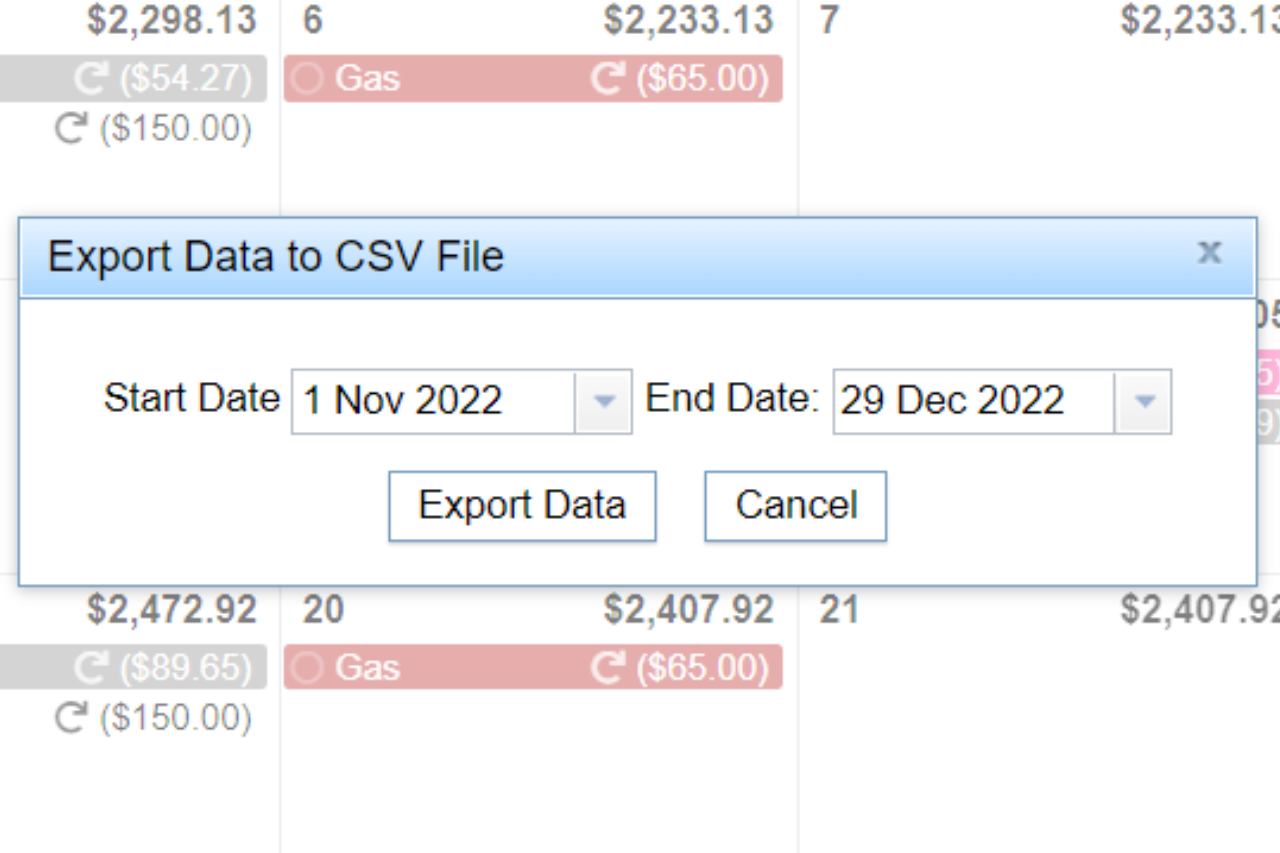
Exporting to Excel sheets is straightforward. In CalendarBudget, simply navigate to your budget entries, select the export option, and choose the Excel format (CSV). Your data will be downloaded, ready for use in Excel.
How export QuickBooks data?
Exporting QuickBooks data involves accessing the software's export feature, selecting the desired data type, and saving it in a compatible format, such as CSV or Excel, for easy use in other applications.
How to export budget summary?
To export your budget summary, navigate to the 'Reports' section in CalendarBudget, select 'Export', and choose your desired format (CSV or Excel). Follow the prompts to download your summary easily.
Is export free in QuickBooks?
Exporting data in QuickBooks is not free; users must have a subscription to access this feature.
Is export feature available?
The export feature is available in CalendarBudget. Users can easily export their budget entries to CSV files, enhancing their ability to manage and analyze their financial information effectively.
Is budget exportable to Excel?
The budget is exportable to Excel. You can easily export your budget entries to a CSV file, which can then be opened in Excel for further analysis and manipulation.
Can I export budget reports?
You can export budget reports using CalendarBudget. This feature allows you to easily download your budget entries in CSV format for further analysis or sharing.
Can export budget to Excel?
You can export your budget to Excel using CalendarBudget. This feature allows you to easily save your budget entries in a CSV format, which can be opened and edited in Excel for better financial management.
What steps are needed to export budgets?
The steps needed to export budgets are straightforward: first, navigate to your budget overview in CalendarBudget, then select the export option, and finally choose the CSV format to download your budget entries.
Can I customize my export settings?
You can customize your export settings in CalendarBudget. This feature allows you to select specific data fields and formats, ensuring the exported budget entries meet your preferences and requirements.
How to ensure data accuracy during export?
Ensuring data accuracy during export involves verifying your budget entries before exporting, checking for any discrepancies, and utilizing the CSV format for easy review. Regularly cross-reference your exported data with your original entries to maintain consistency.
What file formats are available for export?
The available file formats for export in CalendarBudget are CSV and Excel. These formats allow you to easily manage and analyze your budget entries outside of the software.
Is there a limit on exported data size?
There is a limit on the size of exported data in CalendarBudget. Users can export up to 10,000 entries at a time to ensure optimal performance and manageability.
How to troubleshoot export errors?
Troubleshooting export errors involves checking for common issues such as incorrect file formats, insufficient permissions, or data inconsistencies. Ensure your budget entries are correctly formatted and try exporting again. If problems persist, consult the help section for further assistance.
Can I schedule automatic exports?
You can schedule automatic exports with CalendarBudget. This feature allows you to set up regular intervals for exporting your budget entries, making it easier to manage your finances without manual intervention.
What data can I include in exports?
The data you can include in exports consists of your budget entries, which may encompass categories, amounts, dates, and any notes associated with each entry. This allows for comprehensive tracking and analysis of your budgeting activities.
How to export multiple budgets at once?
Exporting multiple budgets at once is straightforward in CalendarBudget. Simply select the budgets you wish to export from your dashboard, then use the "Export" option to download them all in a single CSV file.
Are there any fees for exporting data?
There are no fees for exporting data in CalendarBudget. Users can easily export their budget entries to CSV files at no additional cost, making financial management more accessible and straightforward.
How to access exported files easily?
Accessing exported files easily involves navigating to the designated folder on your device where the files are saved. Typically, this is your Downloads folder unless specified otherwise during the export process.
Can I export historical budget data?
You can export historical budget data from CalendarBudget. This feature allows you to download your budget entries as CSV files, making it easy to analyze your financial history.
What happens if export fails?
If the export fails, you will receive an error message indicating the issue. You can attempt to resolve the problem by checking your internet connection or ensuring your budget entries are correctly formatted before trying again.
How to verify successful exports?
To verify successful exports, check the destination folder for the exported CSV file. Open the file to ensure all budget entries are accurately listed and formatted as expected.
Can I export data from mobile app?
You can export data from the CalendarBudget mobile app. Simply navigate to the export feature in the app settings to download your budget entries as CSV files for easy access and management.
How to export budget entries selectively?
To export budget entries selectively, navigate to your budget overview, select the specific entries you wish to export, and then choose the "Export" option. This allows you to save only the selected entries in a CSV file.
Is there a preview option before export?
The preview option before export allows users to review their budget entries in a formatted view, ensuring accuracy and completeness before finalizing the CSV file. This feature enhances your budgeting experience by minimizing errors.
How to export recurring budget items?
Exporting recurring budget items is simple: go to your budget settings, select the recurring items you wish to export, and choose the export option to download them as a CSV file for easy access and management.
Can I share exported files directly?
You can share exported files directly from CalendarBudget. Simply download the CSV file and send it via email or your preferred file-sharing method to share your budget entries.
What is the best format for budget exports?
The best format for budget exports is CSV (Comma-Separated Values). This format ensures compatibility with various spreadsheet applications, making it easy to analyze and manipulate your budget data efficiently.
How to export data for tax purposes?
Exporting data for tax purposes is straightforward with CalendarBudget. Simply navigate to the export feature within the software, select your budget entries, and choose the CSV format to download your financial data for easy tax filing.
Can I integrate exports with other software?
You can integrate exports from CalendarBudget with other software by exporting your budget entries as CSV files. This format is widely supported, allowing for easy import into various applications for enhanced financial management.
Leave A Comment